Learning how to change UPI PIN in Google Pay starts with one question: do we remember our current PIN? For those of us using Google Pay in India, the answer decides which option we need.
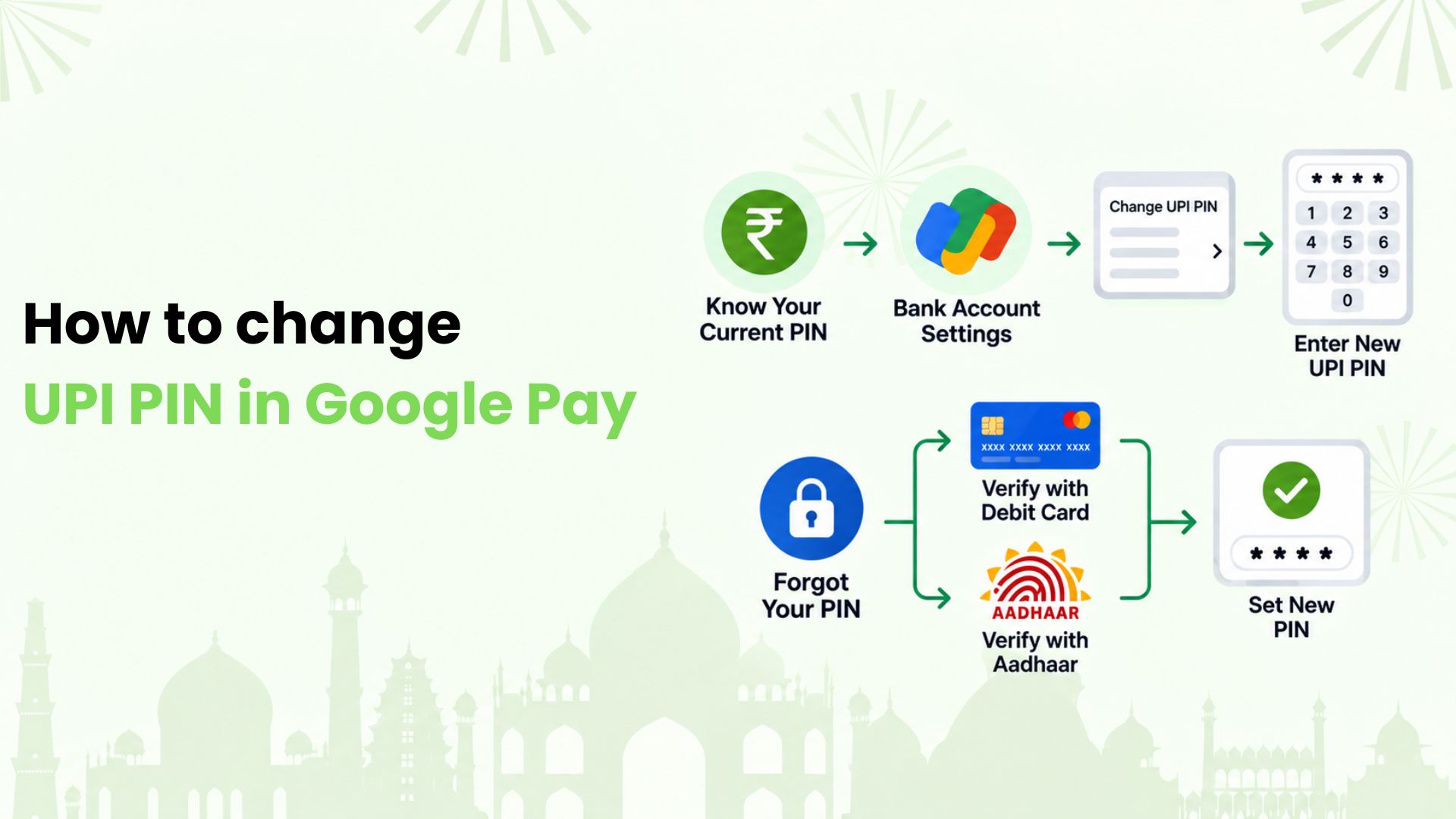
If we know it, we can change it from the linked bank account’s settings. If we have forgotten it, we need to reset it after verifying our account. We’ll walk through both routes, then cover common problems so we can choose the right next step.
What We Need Before We Begin
We start with the Google Pay app on our phone and a working internet connection. Our bank account must already be linked to the app. If several accounts appear, we check which one needs the update before opening its settings.
The details we need depend on the task:
- For a change: We need the current UPI PIN for that bank account.
- For a reset: We need the account-verification method available to us, such as our debit card or supported Aadhaar verification. We also need access to the registered mobile number for verification messages.
How We Update a PIN We Already Know
We can use these steps when we remember the existing PIN:
- We open Google Pay on our phone.
- We tap our profile picture at the top right.
- We select Bank account and choose the account we want to update.
- We open More, usually shown as three dots, and select Change UPI PIN.
- We enter our old UPI PIN.
- We enter the new PIN, then enter it again to confirm.
- We complete the confirmation shown on screen, such as Done.
We follow the PIN length requested on screen. Before leaving the app, we check that the change has completed successfully.
This route uses our existing PIN to authorise the change. We do not need to follow the debit-card reset process simply because we want a new code. If the app rejects the old PIN and we cannot recall it, we move to the forgotten-PIN route below instead of guessing.
How We Reset a Forgotten UPI PIN
For a forgotten PIN, we use Forgot UPI PIN in the selected bank account’s settings. We then complete the verification prompts and create a replacement PIN.
We do not need to recover or enter the forgotten code to finish a reset. The purpose of verification is to establish access to the account before setting a new one.
When We Use our Debit Card
We keep the debit card linked to the selected account ready. When requested, we enter its last six digits and expiry date, then complete the OTP verification shown in the app. We create the new PIN and confirm it when prompted.
We take these details from the correct card, especially if we hold cards from more than one bank. A card for another account will not verify the account we selected. We enter verification details only within the flow we opened ourselves.
When Aadhaar Verification is Available to Us
Some banks support Aadhaar-based PIN resets in Google Pay. Our Aadhaar and bank account must use the same registered mobile number.
The original verification method also matters. Google Pay’s guidance says that an account verified through Aadhaar can use Aadhaar for a reset. If we originally verified through a debit card, its guidance directs us to use that debit card for the reset.
We therefore check the options actually offered for our account. If Aadhaar is unavailable, we contact our bank about supported verification rather than assuming every account has a card-free reset route.
What We Check if the Update Does not Work
A failed attempt does not always mean the PIN itself is wrong. We use the message on screen to decide what to check next.
We see an Incorrect-PIN warning
We stop guessing. Google Pay’s dedicated troubleshooting guidance says three incorrect PIN entries within 24 hours can temporarily block UPI payments. It advises waiting 24 hours before trying again with the same PIN.
We can follow the reset option offered by the app, but we do not assume every restriction will disappear immediately. We follow the bank or app’s stated waiting period if a block remains.
Our Verification Message has not Arrived
We check that the registered mobile number is active and receiving messages. If our phone has weak mobile reception, we move to an area with coverage before trying again.
We allow time for a delayed OTP and follow the app’s resend instructions. If messages still do not arrive, we ask our bank to check the registered number and verification issue.
Our Card or Aadhaar Details are Rejected
We first confirm that we selected the intended bank account. We then check the details entered against the verification method requested on screen.
If the details are correct but verification keeps failing, we contact the bank. We do not keep switching accounts or entering different personal details to force the reset through.
The App Freezes or Shows a Connection Error
We check our internet connection, close and reopen Google Pay, and look for an app update. If the message points to a bank service issue, we wait and retry later.
If the problem continues, we use the Help or Support section inside Google Pay. We can describe the error and when it happened without disclosing our PIN or OTP.
How We Keep Our New PIN Private
We choose a code that is difficult for someone else to guess. We avoid obvious sequences, repeated digits and dates that people around us already know.
We keep our PIN and OTPs to ourselves, even when someone claims to represent our bank or payment app. We also avoid typing them into forms opened from messages or sharing our screen while entering them.
We never need to enter a UPI PIN just to receive money. If someone promises a refund or cashback but asks us to approve a payment first, we pause and check what the screen says the transaction will do.
If we suspect someone has learnt our PIN, we change it and review our recent transactions. If we find a payment we did not authorise, we report it to our bank promptly. Changing the PIN alone does not resolve a transaction already made.
Our Next Everyday Payment Could do More With Kiwi
Once we have sorted our PIN, we can look at how we pay for everyday purchases. At Kiwi, we help make eligible merchant payments through UPI using a RuPay credit card, with cashback subject to the applicable card and offer terms.
From groceries to a meal at a neighbourhood café, we can explore UPI on credit for supported merchant payments. This is different from sending credit-card funds to friends or family.
Our next grocery run could earn cashback. Explore UPI on credit with Kiwi and see how it fits everyday spending. We recommend checking the applicable terms before applying; card approval depends on the partner bank’s eligibility criteria.
FAQs
Does Our New PIN Apply in Other UPI Apps?
Yes, for the same linked bank account, we use its updated UPI PIN across UPI apps. The PIN belongs to that account. We do not maintain a separate bank-account UPI PIN just because we switch from Google Pay to another app.
Does Changing One Account’s PIN Update all our Accounts?
No. We update the account we selected. If we have two bank accounts linked to Google Pay, changing the PIN for one does not change the other. We manage each account separately.
Can We Choose Between a Four-Digit and Six-Digit PIN?
We follow the length required for our bank account. UPI PINs can be four or six digits, but we cannot assume that changing the PIN lets us choose a different length. The app’s prompt tells us what the account requires.
Does this also Change the Code We Use to Unlock Google Pay?
No. We treat the app lock and UPI PIN as separate controls. Our screen lock protects access to the app, while our UPI PIN is used for authorising relevant UPI actions. Updating one does not automatically update the other.
Are Our UPI ID and UPI PIN the Same Thing?
No. We can think of our UPI ID as a payment address and our PIN as a private authorisation code. Changing a PIN is a different task from managing a payment address. We keep those settings separate when looking for help.
Disclaimer: The information in this article is for general informational and educational purposes only and should not be considered banking, financial, payment, or security advice. UPI PIN change and reset processes, verification methods, PIN length, retry limits, and restrictions may vary by bank, UPI app, account type, and applicable NPCI guidelines. Users should never share their UPI PIN, OTP, debit card details, or other confidential banking credentials with anyone. Kiwi-related RuPay credit card, UPI on credit, cashback, eligibility, and approval are subject to partner-bank requirements and applicable product terms.